📚 Series Table of Contents
- 📖 Chapter 0: Introduction and Stories
- 📚 Chapter 1: Some concepts and terminologies
- 🚀 Chapter 2: A noob guy deploy his web app
- 🐳 Chapter 3: Docker and the world of containerization
- ☸️ Chapter 4: K8s in a nutshell
- 🔧 Chapter 5: K8s in details
- 🏠 Chapter 6: Before go to the ground (You are here) 🎯
- 🐧 Chapter 7: Ubuntu server and the world of Linux 🖥️
- ⚡ Chapter 8: MicroK8s the simple and powerful K8s ⚙️
- ☁️ Chapter 9: Harvester HCI the native cloud 🌐
- 🏭 Chapter 10: More about Harvester HCI 🏢
- 🖥️ Chapter 11: Promox VE the best VM manager 💾
- 🌐 Chapter 12: Turn a server into a router with Pfsense 🔌
- 🛠️ Chapter 13: Some tools, services that you can installed for your devops pipeline 🔧
- 🌍 Chapter 14: Hello Internet with Cloudflare Zero Trust 🔒
- 🎉 Chapter 15: Maybe it the end of the series 🏁
Cloud vs Ground
- Cloud service provider like Google Cloud Platform (GCP), Amazon Web Service (AWS) or Vultr have servers in their datacenter and build all kinds of services and tools that support us to ship our application as fast as possible with high availability and almost zero down time
- On premise infrastructure (or as i called it funnily is the Ground), we need to build and host from scratch using existing tools — most are free and open source, some have optional enterprise paid subscriptions (eg microk8s, harvester HCI, Proxmox VE). You can install it on your bare-metal devices such as computers, workstations or even a laptop. But we need to setup and install all things to get our app running. We can rent Datacenter to place our server too which can increase availability and decrease downtime because power and internet in Datacenter is very stable.
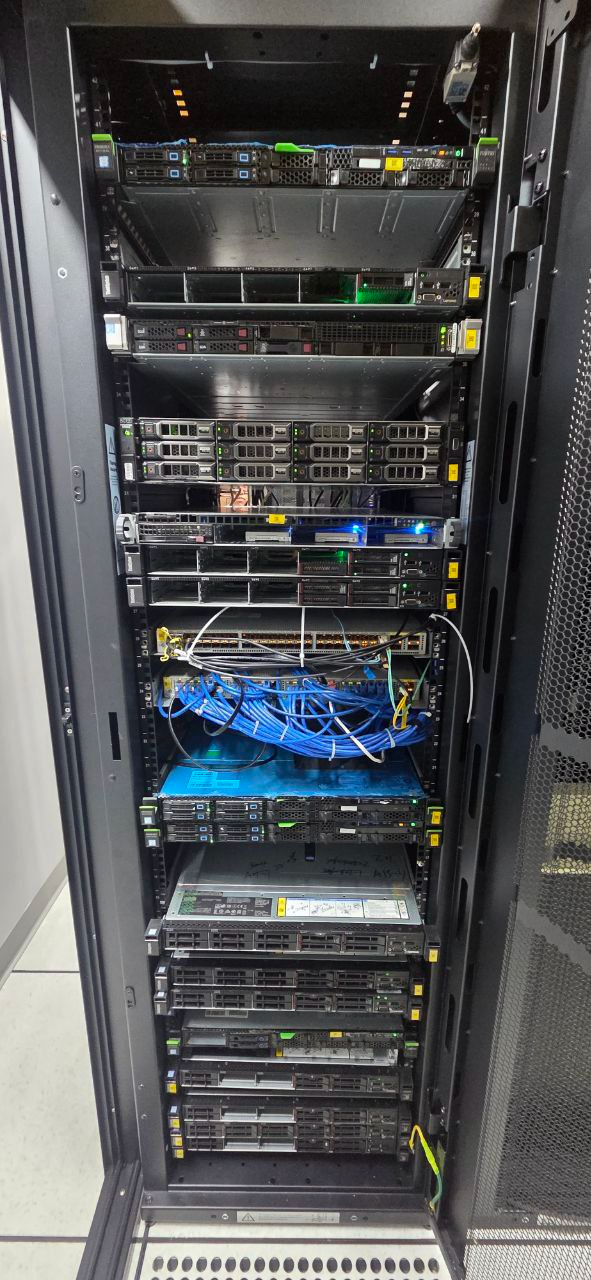
You can try it at home
- Base on your need so you can build your infrastructure. Normally to create an on premise cluster we usually use servers or workstations with Intel Xeon or AMD EPYC CPUs (server-grade CPUs that have a lot of cores and threads) and ECC RAM
- But you can take any devices to start your home cloud. A raspberry pi, orange pi or even a laptop or your gaming PC that you can open it 24/7
Something we must solve
- Using Cloud Provider they will do almost everything for us but with On premise we need to do all things ourselves — really fun right
- One problem we need to solve is the networking problem. Cloud provider have a lot of network, firewall services and Public IP for your VM or Services
- But for on premise most of time we work with LAN IP. So how do we expose services on a LAN IP or remotely connect to our server without any Public IP? We will need to solve it — we’ll tackle this in Chapter 14 using Cloudflare Zero Trust
- And yes datacenter provide public IP for us as long as we have money :D
Cost: Cloud vs Ground
One of the biggest reasons people go on-premise is cost — but it is not always cheaper, especially at the start.
| Cloud | On-Premise | |
|---|---|---|
| Upfront cost | $0 | $200 – $2000+ (hardware) |
| Monthly cost | $20 – $200+/mo (scales with usage) | ~$10 – $30/mo (electricity) |
| Break-even | Never own it | Usually 1–2 years |
| Scaling | Click a button | Buy more hardware |
- A used server or workstation can cost $200–$500 on the second-hand market and run for years
- Power consumption is real — a server running 24/7 at 100W costs roughly $8–$15/month depending on your electricity rate
- Datacenter rental adds cost but gives you stable power, cooling, and bandwidth
- Verdict: On-premise wins long-term for stable workloads. Cloud wins for flexibility and getting started fast
Power & UPS
- Servers need stable, uninterrupted power. A sudden power cut can corrupt your data or leave your cluster in a broken state
- A UPS (Uninterruptible Power Supply) is almost mandatory for home setups — it gives you a few minutes of battery backup to safely shut down when power goes out
- Datacenters handle this with redundant power feeds and large UPS systems — one less thing to worry about if you rent rack space
- For home labs: even a cheap consumer UPS (~$50–$100) is worth it
You Are Your Own SRE
- With cloud, you open a support ticket. On-premise, you are the support ticket
- Hardware fails — hard drives die (HDDs especially), RAM throws errors, PSUs burn out. You need to know how to diagnose and replace components
- No auto-healing — if a node goes down, you need to investigate and fix it yourself
- Updates are your job — OS security patches, firmware updates, software upgrades — all yours
- This is not to scare you. It is actually a great way to learn. But go in knowing the responsibility is on you
Backup Strategy
- On-premise means you own your data — which is great for privacy and control
- But it also means you own your data loss if you do not have a backup plan
- Follow the 3-2-1 rule: keep 3 copies of data, on 2 different media types, with 1 copy offsite (e.g., an external drive at a different location or a cloud backup)
- Cloud providers handle replication automatically. On-premise you must set this up yourself using tools like Velero (for K8s), rsync, or a NAS with RAID
- RAID is not a backup — it protects against disk failure but not against accidental deletion, ransomware, or fire
Out-of-Band Management (IPMI / iDRAC / iLO)
- Imagine your server loses network or the OS crashes. How do you access it if you are not physically there?
- Server-grade hardware solves this with out-of-band management: a separate chip with its own network port and IP that lets you access the server even when the OS is completely dead
- IPMI — generic standard, found on most server motherboards
- iDRAC — Dell’s implementation
- iLO — HP’s implementation
- Through these interfaces you can view the screen, reboot, reinstall the OS — all remotely
- Consumer hardware (Raspberry Pi, gaming PCs, laptops) does not have this — if the OS crashes and you are not home, you need to physically go fix it. Keep this in mind when choosing hardware for a remote setup
When to Still Use Cloud
On-premise is not always the right answer. Cloud still wins in these cases:
- Global reach — CDN, multi-region deployments, latency-sensitive apps serving users worldwide
- Burst traffic — sudden spikes that need 10x resources for a short time
- Managed databases — RDS, Cloud SQL handle replication, backups, failover for you
- Serverless / event-driven workloads — spinning up on-demand is cloud’s sweet spot
- Small teams with no ops experience — the managed overhead is worth the cost
The best architecture is often hybrid: stable, predictable workloads on-premise and elastic or global needs in the cloud.
Some Prerequisites
- Linux knowledge: yes server is linux — no windows, no macos here — so you need to know at least the basics of Linux or have experience using some popular Linux distro eg: ubuntu, red hat, kali,…
- Hardware knowledge: If you know how to build a PC you’re good to go :))
- Network knowledge: Not advanced concepts but you need to know basics like router, local LAN IP, DNS, DHCP, static IP,…
- Programming knowledge: DevOps = Dev + Ops so we’re also developers
Conclusion
- This is just something we need to know before we go to the ground. So if you’re ready, from the next post we just focus on implementation and installation with our servers — no more theory like the beginning chapters of this series. Our journey now truly starts
📚 Series Navigation
| Previous Chapter | Series Info | Next Chapter |
|---|---|---|
| ← Previous Chapter 🔧 K8s in details | DevOps Series Chapter 6 of 16 | Next Chapter → 🐧 Ubuntu server and the world of Linux |