📚 Series Table of Contents
- 📖 Chapter 0: Introduction and Stories
- 📚 Chapter 1: Some concepts and terminologies
- 🚀 Chapter 2: A noob guy deploy his web app
- 🐳 Chapter 3: Docker and the world of containerization
- ☸️ Chapter 4: K8s in a nutshell
- 🔧 Chapter 5: K8s in details (You are here) 🎯
- 🏠 Chapter 6: Before go to the ground 🏡
- 🐧 Chapter 7: Ubuntu server and the world of Linux 🖥️
- ⚡ Chapter 8: MicroK8s the simple and powerful K8s ⚙️
- ☁️ Chapter 9: Harvester HCI the native cloud 🌐
- 🏭 Chapter 10: More about Harvester HCI 🏢
- 🖥️ Chapter 11: Promox VE the best VM manager 💾
- 🌐 Chapter 12: Turn a server into a router with Pfsense 🔌
- 🛠️ Chapter 13: Some tools, services that you can installed for your devops pipeline 🔧
- 🌍 Chapter 14: Hello Internet with Cloudflare Zero Trust 🔒
- 🎉 Chapter 15: Maybe it the end of the series 🏁
In the last chapter of this series, we discussed the basics of K8s and what problems it solves. We also deployed a nginx service in our local MicroK8s cluster with 3 running pods. In this post let’s go deeper so you can really use K8s to deploy a backend API using Node.js.
This post is a learn-by-doing approach, not theory only. Assume you are using Ubuntu or any Linux distro and have MicroK8s installed: https://canonical.com/microk8s as we have done in the previous chapter.
1. Manage k8s cluster with kubectl
- To manage a K8s cluster we use a CLI tool called kubectl (which calls the K8s API underneath). kubectl can manage multiple K8s clusters — each cluster configuration is called a context.
- Luckily, the MicroK8s we installed has a built-in kubectl pointing to that local K8s cluster as the default context via
microk8s kubectl. - But I recommend installing kubectl itself on our machine so we can manage multiple clusters later and type
kubectlinstead ofmicrok8s kubectl. Pro tip: Linux has command aliases so you don’t need to type long commands. - Follow this docs to install kubectl on your machine: https://kubernetes.io/docs/tasks/tools/install-kubectl-linux/ or just:
curl -LO "https://dl.k8s.io/release/$(curl -L -s https://dl.k8s.io/release/stable.txt)/bin/linux/amd64/kubectl"
sudo install -o root -g root -m 0755 kubectl /usr/local/bin/kubectl
## test and verify
kubectl version --client- Then create a
.kubedirectory in the$HOMEdirectory with aconfigfile to tell kubectl which clusters (contexts) to handle. Run these commands to set it up:
mkdir -p ~/.kube
microk8s kubectl config view --raw > ~/.kube/config
chmod 600 ~/.kube/config
The chmod 600 is important — kubectl will warn about insecure file permissions if you skip it. The config file contains your K8s API endpoints and credentials (base64 encoded), so it should only be readable by your user.
- Test with:
kubectl get nsIf you see no error and the default namespace is listed, you’re ready to go. To check how many contexts exist and which is current, use: kubectl config get-contexts
- Later if you have another cluster to manage, just get its raw config and add it to each YAML block — remember to change the name of the cluster. That’s it!
2. The image registry
- To run a container we need an image. To get an image, the K8s cluster needs to pull it from an image registry.
- We can use a public registry like Docker Hub, but for production use we normally install a private registry.
- Luckily, MicroK8s has a built-in registry too — just enable it via
microk8s enable registry. - The built-in registry will run on port
32000on your machine, so when you build your image you tag it like this:docker build . -t localhost:32000/myapp:v1.0.0 - Pushing to this insecure registry may fail in some versions of Docker unless the daemon is explicitly configured to trust it. To address this, edit
/etc/docker/daemon.jsonand add:
{
  "insecure-registries": ["localhost:32000"]
}daemon.json
Then run sudo systemctl restart docker to apply. Now you can push to the built-in registry: docker push localhost:32000/myapp:v1.0.0
- Let’s try: create a Node.js project via
npm init -yinside a directory namedhello-k8sor whatever you want. - Run
npm i expressthen create anindex.jsfile with the Hello World boilerplate:
const express = require("express");
const app = express();
const port = 3000;

app.get("/", (req, res) => {
  res.send("Hello World!");
});

app.listen(port, () => {
  console.log(`Example app listening on port ${port}`);
});index.js- Create a
.dockerignorefile:
node_modules/
Dockerfile.dockerignore- Create a
Dockerfile:
FROM node:18-alpine
WORKDIR /app
COPY package*.json ./
RUN npm install
COPY . .
EXPOSE 3000
CMD ["node", "index.js"]Dockerfile- Build and push to local registry:
docker build -t localhost:32000/hello-k8s:v1.0.0 .
docker push localhost:32000/hello-k8s:v1.0.0Tip: Always tag your images with an explicit version (
v1.0.0,v1.0.1, etc.) instead of relying on the defaultlatesttag. K8s nodes cache images locally, so if you push a new build with the samelatesttag, the cluster may keep running the old cached image and silently ignore your update. A version tag forces a fresh pull every time.
- Nice! By default MicroK8s knows how to pull images from its built-in registry. For other private registries you can configure MicroK8s to pull from them or add an image pull secret. Read more here: https://canonical.com/microk8s/docs/registry-private — I don’t want this post to get too long.
3. Networking
- Now we’ve pushed our image to the built-in registry. Let’s deploy it to our K8s cluster.
- Create a
deployment.yamlfile with just the Deployment first:
---
apiVersion: v1
kind: Namespace
metadata:
  name: hello
---
apiVersion: apps/v1
kind: Deployment
metadata:
  name: hello
  namespace: hello
spec:
  replicas: 1
  selector:
    matchLabels:
      app: hello
  template:
    metadata:
      labels:
        app: hello
    spec:
      containers:
        - name: hello
          image: localhost:32000/hello-k8s:v1.0.0:v1.0.0
          ports:
            - containerPort: 3000
---deployment.yaml- This tells the K8s cluster to create a namespace named
helloand inside it create a deployment with a pod running our container. Apply viakubectl apply -f deployment.yaml. - But now if you visit
localhost:3000nothing shows up — even though the pod is running. Why? - K8s creates an internal virtual network inside the cluster that is isolated from your host network. Pods get an internal IP that only exists inside the cluster. That’s why you cannot access them directly from your host machine. The K8s Service resource is what bridges this gap — it gives pods a stable, reachable address. K8s has three main service types: ClusterIP, NodePort, and LoadBalancer.
- ClusterIP is the default service type. Kubernetes assigns a virtual IP address to a ClusterIP service that can only be accessed from within the cluster. This IP is stable and doesn’t change even if the pods behind it are rescheduled or replaced. ClusterIP is an excellent choice for internal communication between different components of your application that don’t need to be exposed to the outside world. For example, if you have a microservice that processes data and sends it to another microservice, you’d use a ClusterIP service to connect them. Here’s an example:
apiVersion: v1
kind: Service
metadata:
  name: hello
  namespace: hello
spec:
  selector:
    app: hello
  type: ClusterIP
  ports:
    - protocol: TCP
      port: 3000
      targetPort: 3000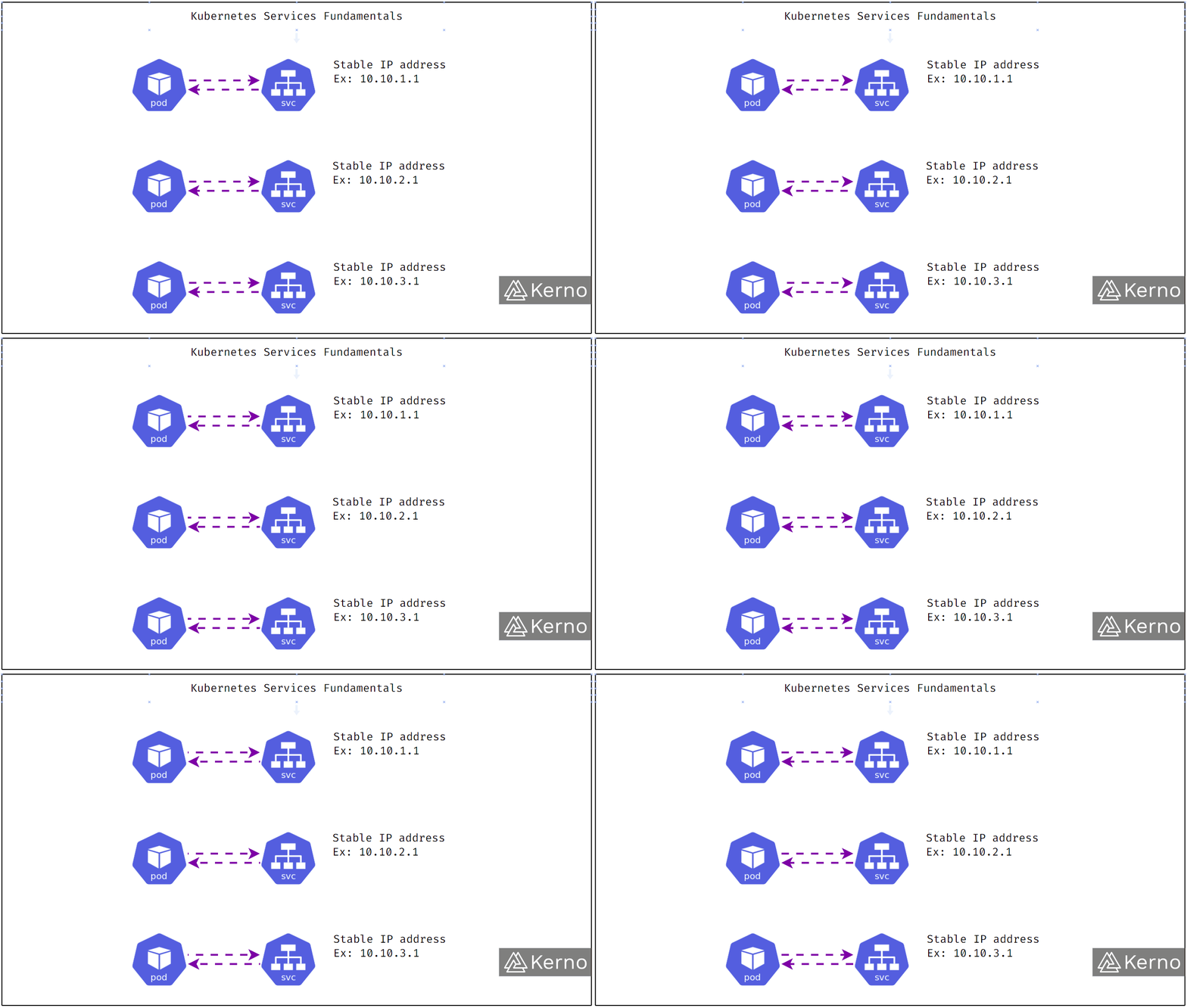
- NodePort services extend the functionality of ClusterIP services by enabling external connectivity. When you create a NodePort service, Kubernetes opens a designated port on every node in the cluster and forwards traffic through to the corresponding ClusterIP service. You can then access your application using the node’s IP address and the assigned port number. Here’s an example:
apiVersion: v1
kind: Service
metadata:
  name: hello
  namespace: hello
spec:
  selector:
    app: hello
  type: NodePort
  ports:
    - name: http
      port: 3000
      targetPort: 3000
nodePort: 30300-
We define a service named
hellowith type NodePort and expose port30300on the host machine. The reason we use30300is that Kubernetes restricts NodePort to the range 30000–32767 — you cannot use standard web ports like 80 or 443.- LoadBalancer services are used in cloud environments where high availability and scalability are critical. When you create a LoadBalancer service, Kubernetes provisions a cloud load balancer with a public IP that routes traffic to the nodes running the service. MicroK8s does not support this natively (it requires a cloud provider), so we won’t cover it in depth here.
At the end of the day: all pods sit behind a ClusterIP. To reach them from outside the cluster you can use NodePort or LoadBalancer. Let’s update our deployment.yaml to use NodePort so we can test:
---
apiVersion: v1
kind: Namespace
metadata:
  name: hello
---
apiVersion: apps/v1
kind: Deployment
metadata:
  name: hello
  namespace: hello
spec:
  replicas: 1
  selector:
    matchLabels:
      app: hello
  template:
    metadata:
      labels:
        app: hello
    spec:
      containers:
        - name: hello
          image: localhost:32000/hello-k8s:v1.0.0
          ports:
            - containerPort: 3000
---
apiVersion: v1
kind: Service
metadata:
  name: hello
  namespace: hello
spec:
  selector:
    app: hello
  type: NodePort
  ports:
    - name: http
      port: 3000
      targetPort: 3000
      nodePort: 30300
---deployment.yaml
Then visit localhost:30300 and you will see our backend running.
4. Ingress for exposing k8s services
-
NodePort is only for testing — here’s why you should never use it in production:
- Non-standard ports: NodePort only allows ports in the range 30000–32767. Your users would have to visit
example.com:30300instead of justexample.com. No one does that in production. - No SSL/TLS termination: NodePort has no built-in HTTPS support. You’d have to handle TLS inside every individual application pod, which is complex and inconsistent.
- No routing logic: One NodePort exposes exactly one service. If you have 10 services, you need 10 NodePorts, 10 firewall rules, and 10 different ports for users to remember. There’s no path-based or host-based routing (e.g.,
/api→ service A,/web→ service B). - Security exposure: NodePort opens that port on every single node in the cluster, even nodes not running that service’s pods. This widens your attack surface unnecessarily.
- Not scalable: Managing many NodePorts across a large cluster is a maintenance nightmare.
- Non-standard ports: NodePort only allows ports in the range 30000–32767. Your users would have to visit
-
In production, the standard approach is to use ClusterIP + Ingress. Ingress handles all the concerns above in one place.
What is Ingress and how does it work?
Ingress in Kubernetes has two separate parts you must understand:
-
Ingress Controller: This is a real workload (a pod running nginx, or Traefik, or HAProxy, etc.) deployed inside your cluster — usually as a DaemonSet so it runs on every node. It watches for Ingress resources in the cluster and dynamically configures itself (nginx routing rules) whenever you add or change an Ingress. It listens on port 80 and 443 of the host node, so traffic entering those standard ports gets picked up.
-
Ingress resource: This is a K8s config object (a YAML file) where you declare your routing rules — which hostname maps to which service, which path maps to which backend, and optionally TLS certificates. The Ingress Controller reads these rules and applies them to its internal nginx config automatically.
Think of the Ingress Controller as the nginx server itself, and each Ingress resource as a server {} block in nginx config — except K8s manages the config file for you.
What Ingress gives you:
-
Host-based routing:
api.example.com→ service A,web.example.com→ service B -
Path-based routing:
example.com/api→ service A,example.com/→ service B -
TLS/SSL termination: HTTPS is handled at the Ingress level using a TLS secret — your internal services can stay plain HTTP
-
Single entry point: All external traffic enters through one IP on ports 80/443 and gets routed to the right service internally
-
To enable the nginx Ingress Controller in MicroK8s (it’s a built-in addon):
microk8s enable ingress -
For a local test we need a domain that points to our machine’s port 80. Since we’re on a local LAN IP, we’ll use a Cloudflare tunnel (we’ll cover this in more detail in a later chapter). Install cloudflared:
curl -L https://github.com/cloudflare/cloudflared/releases/latest/download/cloudflared-linux-amd64.deb -o cloudflared.deb && sudo dpkg -i cloudflared.debThen:
cloudflared tunnel --url localhost:80No account needed — it’ll give you a random *.trycloudflare.com URL instantly. Keep this terminal running.
Now update your deployment like this:
---
apiVersion: v1
kind: Namespace
metadata:
  name: hello
---
apiVersion: apps/v1
kind: Deployment
metadata:
  name: hello
  namespace: hello
spec:
  replicas: 1
  selector:
    matchLabels:
      app: hello
  template:
    metadata:
      labels:
        app: hello
    spec:
      containers:
        - name: hello
          image: localhost:32000/hello-k8s:v1.0.0
          ports:
            - containerPort: 3000
---
apiVersion: v1
kind: Service
metadata:
  name: hello
  namespace: hello
spec:
  selector:
    app: hello
  type: ClusterIP
  ports:
    - protocol: TCP
      port: 3000
      targetPort: 3000
---
apiVersion: networking.k8s.io/v1
kind: Ingress
metadata:
  name: hello
  namespace: hello
spec:
  ingressClassName: public
  rules:
    - host: "your-cloudflare-domain.trycloudflare.com"
      http:
        paths:
          - path: /
            pathType: Prefix
            backend:
              service:
                name: hello
                port:
number: 3000deployment.yaml- Apply and visit
your-cloudflare-domain.trycloudflare.com— you now have a running backend in K8s exposed with a domain and SSL too! - Here is how traffic flows: Internet → Cloudflare tunnel → your machine on port 80 → nginx Ingress Controller (running as a pod in K8s) → hello ClusterIP service → express pod
Conclusion
This post is pretty long — I hope you followed it well. At this point you can:
- Set up kubectl to manage your MicroK8s cluster
- Build and push images to a local private registry
- Deploy a Node.js app to K8s using a Deployment
- Understand ClusterIP, NodePort, and LoadBalancer service types
- Expose a service to the internet using Ingress with a real domain and SSL
I recommend reading more K8s documentation about services and Ingress, or using AI to go deeper on specific topics.
In the next chapter we’ll cover “Before go to the ground” — some important foundations to set up before building a real on-premise cluster, so you don’t have to redo things later.
📚 Series Navigation
| Previous Chapter | Series Info | Next Chapter |
|---|---|---|
| ← Previous Chapter ☸️ K8s in a nutshell | DevOps Series Chapter 5 of 16 | Next Chapter → 🏠 Before go to the ground |